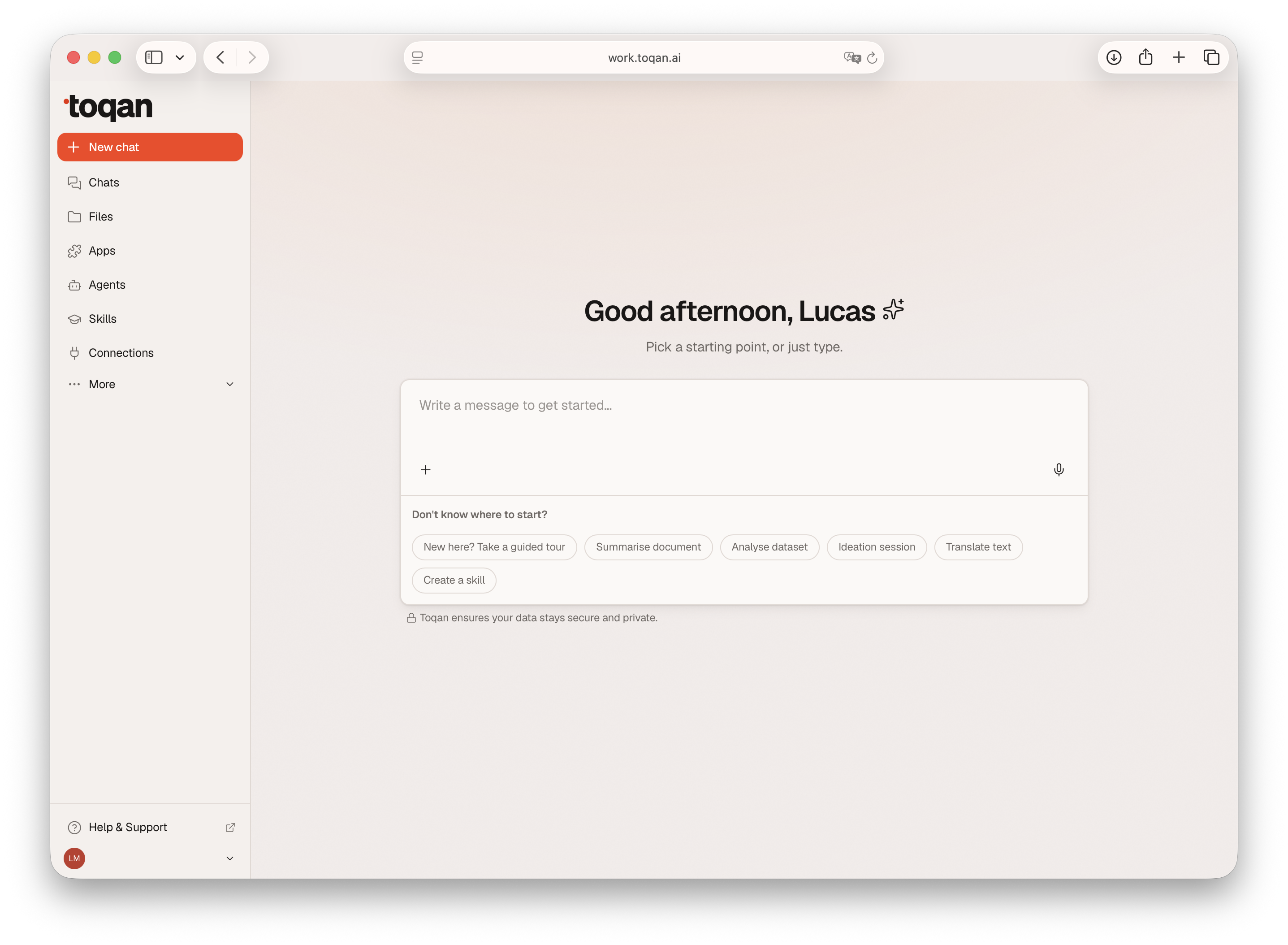
Welcome to the new unified Toqan! 🎉
This guide walks you through the new interface — where everything lives and how to find what you need.
What’s new? Flamingo and Claw have merged into one Toqan. Everything is now in one place, starting from the left sidebar.
The Left Sidebar — Your Home Base
Everything starts here. Here’s what you’ll always find:
🔴 New Chat (+)
The prominent button at the top (uses your accent color). Click to start a fresh conversation.
💬 Chats
Your conversation history. You can:
- Browse all past conversations
- Filter by date
- Pin important ones to keep them at the top
- Rename or delete conversations
📁 Files
Your workspace file manager. Access:
- All workspace files and folders
- Recent files for quick access
- Uploaded files (.md, .html, .pdf, etc.)
- Export or import your entire workspace
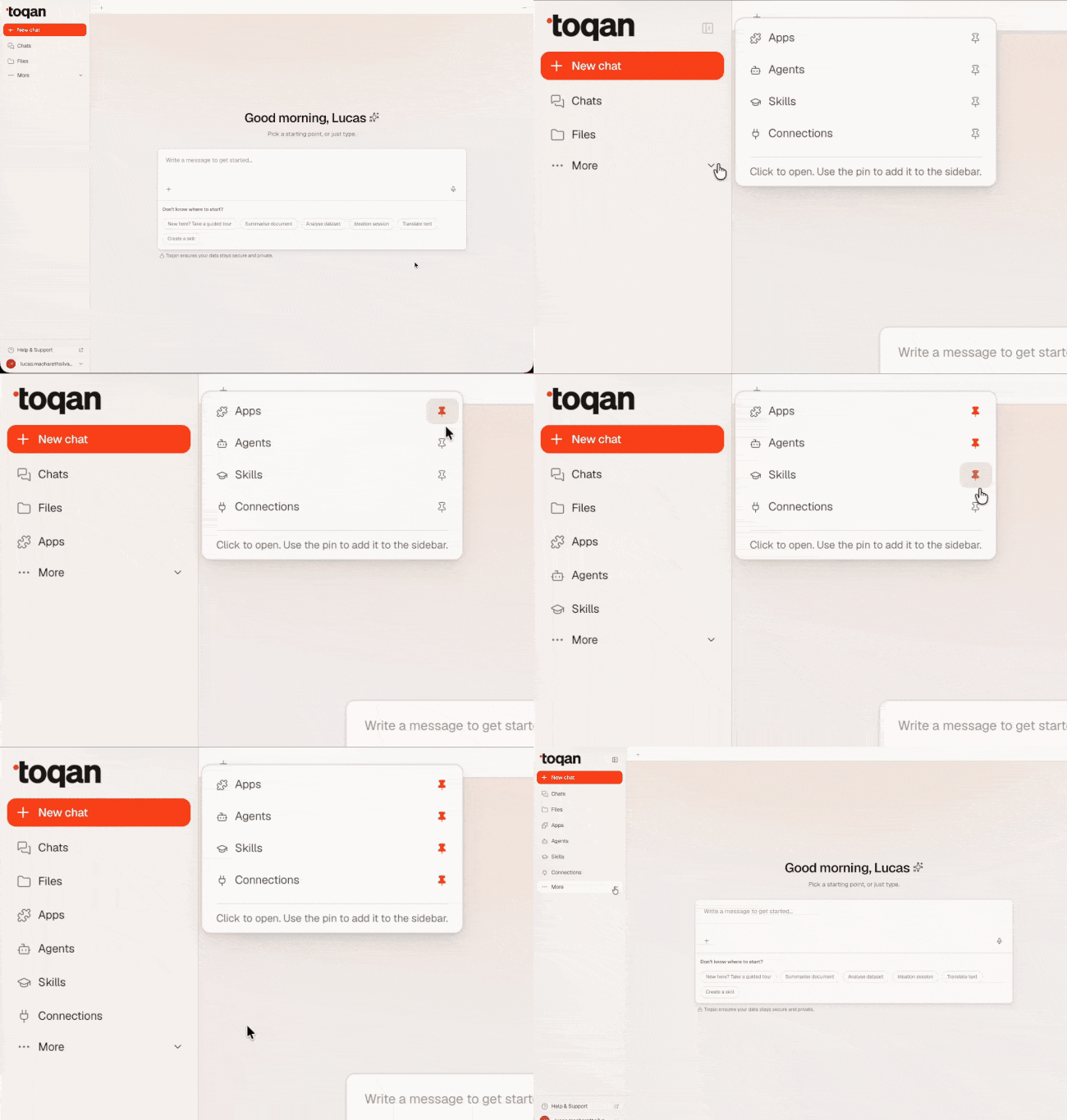
⋯ More
Click the three dots to access more sections. See below for what’s inside.
Inside the More Menu
🚀 Apps
Web apps you’ve built with Toqan. Each app shows as a card with its name and status. From here you can:
- Open any app
- Share an app (opens a dialog where you control who can access it)
- When opened, the app runs in a new tab — you’ll see if it’s building or already live
- Apps shared with you will also be shown there in the future
🛠️ Skills
Available capabilities and tools. Browse what’s installed on your workspace and what you can use from others via the Skills Marketplace.
🔌 Connections
Your integrations hub. Everything is here:
- Your MCP connectors
- Connected Integrations — the one you have installed and authorized (In with a yellow marker if the connecter still need an authorization or re-authorization, and Green if ready to be used)
- Available integrations - The list here depends on your organisation and what your admin have decided to pre-install and list.
- Stored Credentials — Manage API keys and tokens securely for safely interacting with API endpoints.
- Add MCP Server — Connect custom integrations with URL and authentication details
📋 Board
Task board view (enable in Settings if you don’t see it). Track and follow your Toqan’s tasks.
Account Settings
Access from the bottom left corner — your avatar and name.
Profile
- View your email
- Access to settings
Settings
- Appearance — Toggle between System, Light, or Dark mode
- Accent Colors — Choose from 8 options: Flamingo, Lobster, Tangerine, Peacock, Matcha, Lagoon, Twilight, Graphite
- Language — Set your preferred language (English, Español, Nederlands, Português, Polski)
- Board view — Enable/disable the task board of ToqanClaw (off by default) to see what it is working on
- Logout — Sign out of your account
Danger Zone
- Reset Toqan — Restore Toqan to its initial setup. All data, skills, and apps will be lost. This is irreversible.
Top Navigation Tabs
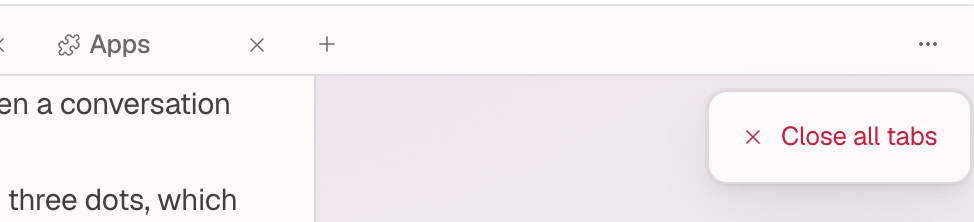
Open chats and files appear as tabs across the top — like a web browser. This is where your active work happens.
How Tabs Work
- You can have up to 20 tabs open at once
- Drag and drop tabs to reorganize them
- Click the three dots (⋯) to Close all tabs when you’re done
Keeping Tabs Manageable
We recommend keeping only your active working tabs open to avoid clutter. To help with this, two improvements are coming:
- Auto-close — Tabs not touched for 7 days will automatically close
- Oldest tab closes first — When you try to open a 21st tab, the oldest one will close to make room
Quick Reference
| Section | What You’ll Find |
|---|---|
| New Chat | Start a new conversation |
| Chats | All conversation history |
| Files | Workspace files and folders |
| More (⋯) | Apps, Skills, Connections, Board |
| Pinned items | Quick access to your favorites |
| Account | Profile and Settings |
| Tabs | Your active work (max 20) |
Last updated: June 2026